
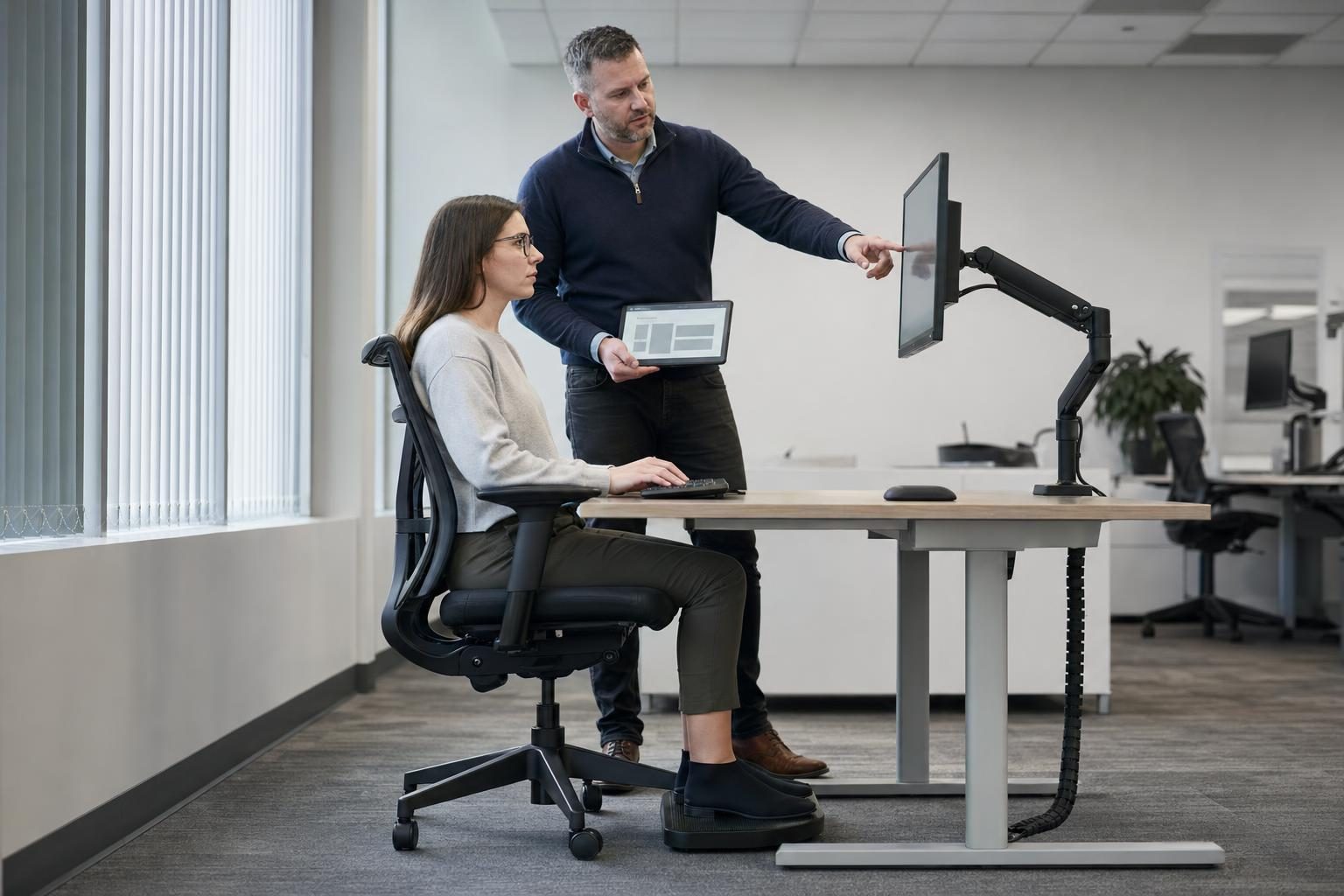
DSE Workstation Assessment: Checklist and 2 Filled Examples
A DSE workstation assessment is the risk assessment an employer carries out for each person who uses display screen equipment as a regular part of their job. It checks the screen, keyboard, mouse, chair, desk, software, environment and work routine against the user's tasks and body. It records what needs changing and is reviewed when something significant changes.
Most organizations already have a DSE form. The problem is what happens to it. A user ticks forty boxes on the first day, the form goes into a shared folder, and nobody reads the three "no" answers until the same person reports a sore neck eight months later. The law in the UK, the EU and Türkiye asks for more than a form. It asks for an analysis of the workstation, action on what it finds, breaks built into the work, eye tests and training.
This guide covers who counts as a DSE user, what the law requires in four jurisdictions, a 30-point checklist, a five-step method, two filled assessments (an office desk user and a hybrid worker on a laptop), eye tests and breaks, and when to review. It does not repeat posture scoring methods such as RULA; for those, see our workplace ergonomics guide.
One Finance Team, One Complaint
This is a fictional example built for this guide. A finance team of nine people moved to a new floor in the spring. Desks were assigned by row, chairs came from the old floor, and two people now sit side-on to a large window. Every new starter completes an online DSE self-assessment, and all nine did.
In October, an accounts clerk tells her manager that her neck and right shoulder ache by mid-afternoon. The manager forwards it to the safety adviser with a note: "She did her DSE assessment, it's all green."
When the adviser opens the record, it is not all green. She answered "no" to "Can you adjust your chair so your feet rest flat on the floor?" and "Is your screen free from glare?" six months ago. Nobody acted on either answer, because the software marked the assessment "complete" when she submitted it. We will come back to this clerk in the first worked example.
What Is a DSE Workstation Assessment?
A DSE workstation assessment is an analysis of one person's workstation and way of working, done to find and reduce risks to their eyes, musculoskeletal system and mental wellbeing from screen work. It sits under your general risk assessment; it does not replace it.
| Term | Meaning |
|---|---|
| Display screen equipment (DSE) | Any alphanumeric or graphic display screen, regardless of the display process (UK DSE Regulations 1992, reg. 1) |
| User | An employee who habitually uses DSE as a significant part of their normal work |
| Workstation | The screen plus keyboard or other input device, software, accessories, chair, desk and the immediate work environment |
| DSE assessment | The employer's analysis of a user's workstation (UK reg. 2; EU Directive 90/270/EEC; Turkish regulation Art. 5) |
| Also called | Workstation assessment, VDU assessment, display screen risk assessment |
The UK Health and Safety Executive (HSE) lists the main risks of poorly set-up screen work as pain in the neck, shoulders, back, arms, wrists and hands, fatigue and eye strain (HSE DSE overview, updated March 2025). Those are the outcomes the assessment is trying to prevent.
Who Counts as a DSE User?
HSE's working test is simple: a DSE user is someone who uses DSE "daily, as part of their normal work, continuously for an hour or more" (HSE, Workstations and assessment). The regulations do not apply to people who use DSE only occasionally or for short periods. They cover desktops, laptops, tablets and smartphones, and fixed, mobile, home and hot-desking workers.
| Worker | Typical use | User? | What to do |
|---|---|---|---|
| Accounts clerk | Spreadsheets most of the day | Yes | Full assessment |
| Hybrid project manager | Laptop at home 3 days, office 2 days | Yes | Assess both set-ups |
| Call center agent, hot-desking | Screen and headset all shift, different desk daily | Yes | Basic assessment at each desk plus training |
| Warehouse supervisor | Checks a terminal for 10 minutes a few times a shift | Usually no | General risk assessment covers it |
| Field engineer | Tablet for job sheets, a few minutes per visit | Usually no | Keep under review if use grows |
| Receptionist | Booking system on and off all day, rarely an hour without a break | Borderline | Treat as a user; the assessment costs little |
The UK regulations also list what is excluded: drivers' cabs and control cabs for vehicles or machinery, DSE on board a means of transport, DSE mainly for public use, portable systems not in prolonged use, calculators and cash registers with small displays, and window typewriters (reg. 1(4)). Türkiye's regulation has almost the same list.
When in doubt, assess. A short assessment for a borderline user costs ten minutes; a missed one can cost a long absence.
What the Law Requires: UK, EU, Türkiye and US
The UK, the EU and Türkiye all build on the same 1990 directive, so the duties look alike. They differ on eye tests, on equipment detail and on how users are defined.
| UK | EU | Türkiye | US | |
|---|---|---|---|---|
| Main source | Health and Safety (Display Screen Equipment) Regulations 1992 | Council Directive 90/270/EEC (29 May 1990) | Ekranlı Araçlarla Çalışmalarda Sağlık ve Güvenlik Önlemleri Hakkında Yönetmelik (Resmî Gazete 16 April 2013, No. 28620) | No OSHA standard specific to computer workstations |
| Assessment | Suitable and sufficient analysis of users' workstations (reg. 2) | Analysis of workstations for eyesight, physical and mental stress risks | Part of the workplace risk assessment: eyesight, physical problems, mental stress (Art. 5) | Voluntary guidance (OSHA eTool) |
| Minimum equipment standards | The Schedule | Annex | Ek-1 | — |
| Breaks | Plan breaks or changes of activity (reg. 4) | Periodic breaks or changes of activity | Work plan with periodic breaks or rotation (Art. 7) | — |
| Eye tests | On the user's request, and at regular intervals after that (reg. 5) | Before starting, at regular intervals, and on visual difficulties | Before starting, at regular intervals set by the workplace doctor, and on visual difficulties (Art. 9) | — |
| Glasses | Employer pays only if special glasses are needed for screen work | Special corrective appliances if needed | Suitable equipment if the exam shows it is needed (Art. 9(3)) | — |
| Training | Required (reg. 6) | Before starting and on substantial change | Before starting and on significant change (Art. 6) | — |
| Cost to workers | — | — | Measures cannot be charged to workers (Art. 5(2)) | — |
Some details worth knowing:
- UK. Regulation 2 requires the employer to reduce the risks found "to the lowest extent reasonably practicable" and to review the assessment if there is reason to suspect it is no longer valid or there has been a significant change. The Schedule says the screen must "swivel and tilt easily and freely", the seat "shall be adjustable in height", and a footrest must be made available to any user who wants one.
- EU. Directive 90/270/EEC is the fifth individual directive under the Framework Directive 89/391/EEC. Member states transpose it into national law, so check your country's version.
- Türkiye. The 2013 regulation follows the directive closely but goes further in two places. Eye examinations are required before a person starts screen work, not only on request. And Ek-1 says a support on which the user can rest their wrists should be placed in front of the keyboard, a requirement the UK Schedule does not contain.
- US. OSHA's Computer Workstations eTool is a training aid that covers chairs, desks, monitors, keyboards and pointing devices, with an evaluation checklist. It states that eTools "do not create new OSHA requirements."
None of the four sources sets a temperature, humidity or lighting figure for screen work. The UK Schedule and the Turkish Ek-1 only say these must be suitable. Figures you may see on training slides come from other standards or guidance, so cite the source if you use one.
What the Assessment Covers: a 30-Point Checklist
HSE's own DSE workstation checklist (CK1) groups risk factors into six areas: keyboards, mouse and trackball, display screens, software, furniture and the work environment. The checklist below uses the same areas, adds work routine, eyes and training, and turns each item into a question you can answer by looking. The items come from the UK Schedule, the Turkish Ek-1 and HSE's guidance pages; the grouping and wording are ours.
Display screen
- Characters are sharp and the image is stable, with no flicker.
- Brightness and contrast can be adjusted by the user.
- The screen swivels and tilts, or sits on a separate base or adjustable stand.
- The top of the screen is level with the eyes, about an arm's length away (HSE good-posture guidance).
- The screen is directly in front of the user, not off to one side.
- No glare or reflections on the screen from windows or lights.
Keyboard and mouse
- The keyboard is separate from the screen and can be tilted.
- There is space in front of the keyboard to rest hands and arms.
- The keyboard is just below elbow height when seated.
- The keyboard surface is matt and the key symbols are readable.
- The mouse is in line with the elbow, close to the keyboard.
- A wrist support is available where the user wants one (required in Türkiye by Ek-1).
Chair and desk
- The seat height adjusts so the thighs are supported and feet rest flat.
- A 2–3 cm gap between the front of the seat and the back of the knee (HSE).
- The backrest adjusts in height and tilt and supports the lower back.
- A footrest is provided if the user asks for one.
- The desk is large enough for screen, keyboard, documents and phone.
- The desk surface does not reflect light.
- A document holder is available if the user works from paper.
- There is room under and around the desk to change position.
Environment and software
- Lighting suits the task; blinds on windows can be adjusted.
- Equipment noise does not distract or disrupt conversation.
- Equipment does not make the workstation uncomfortably warm.
- The room is not uncomfortably dry or stuffy (ask the user).
- Software suits the task, is easy to use and gives feedback.
- Users know about any monitoring of their work (the UK Schedule bars checking facilities used without users' knowledge).
Work routine, eyes and training
- Work is planned so there are breaks or changes of activity.
- The user knows how to get an eye test (and, in Türkiye, has had one before starting).
- The user has been trained to adjust the chair, screen and lighting.
- The user knows how to report discomfort and who acts on it.
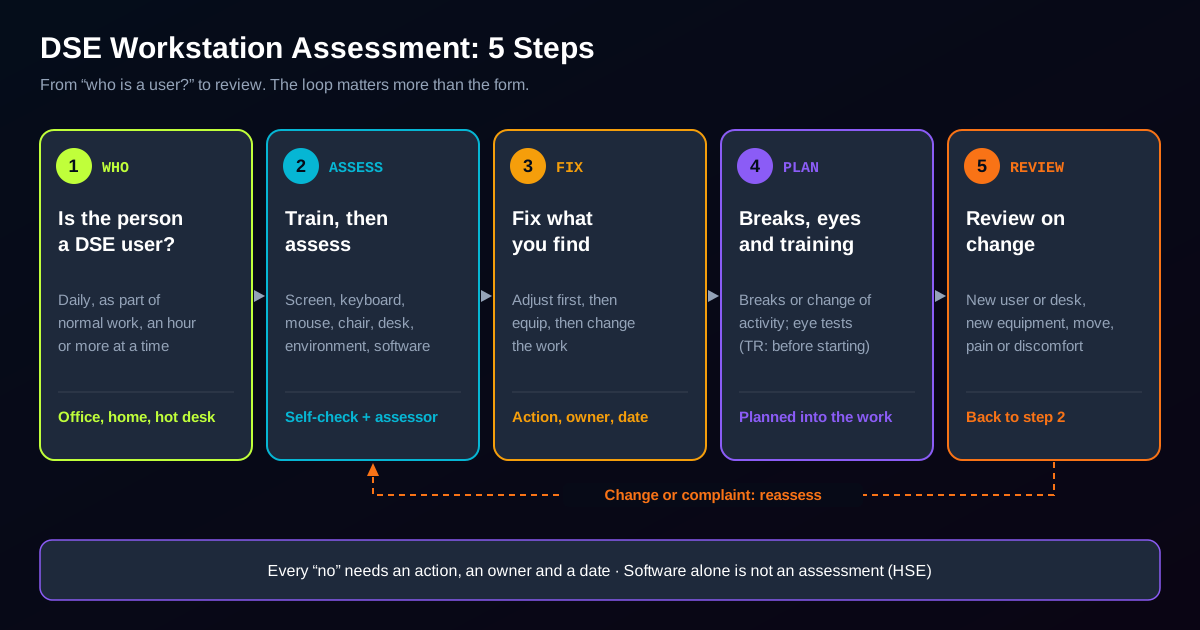
Each "no" needs an action, an owner and a date. A checklist with no action column is a survey, not an assessment.
How to Run the Assessment in 5 Steps
Step 1: Confirm who is a user and where they work
List every user and every place they work: an assigned desk, a hot desk, home, client sites. For a hybrid worker, that means two assessments on one record.
Step 2: Train before you assess
Users cannot judge their own set-up until they know what good looks like. HSE's training topics are sitting posture, adjusting chairs and furniture, arranging desk space, adjusting screens and lighting to avoid glare, breaks, risk assessment and reporting problems (HSE, Training and information). In Türkiye, Article 6 of the regulation requires this training before the person starts and again when conditions change significantly.
Step 3: Self-assessment, then a trained assessor reviews it
A self-assessment is a valid starting point. HSE says software can help, but "the software is not an assessment on its own," and a trained assessor should look at the results. Set a rule: every "no" or reported discomfort goes to the assessor within a set number of days. Visit the desk, or hold a video call for home workers, when the answers point to a problem.
Step 4: Act on every finding
Adjust first, then equip, then change the work. Many findings cost nothing: lower the chair, move the screen, close the blind. Some need equipment: a footrest, a laptop riser, a separate keyboard. A few need a change to the job, such as more task variety. This follows the hierarchy of controls: fix the workstation before asking the person to adapt. Track open items like any other corrective action.
Step 5: Record, share and set the review
Write down what was found, what was done and when it will be checked again. Give the user a copy. Note any special requirement, such as a user with a disability, a pregnancy or a recent injury, and make sure the actions reflect it.
Worked Example 1: Office Desk User
This is the fictional accounts clerk from the opening. Her tasks: invoice processing and reconciliations in two spreadsheets and a finance system, about seven hours a day at the screen, with phone calls and a weekly team meeting. She works from paper invoices for about half the day.
| Area | Finding | Action | Owner / date |
|---|---|---|---|
| Chair | Seat at lowest setting, her feet still do not rest flat; backrest set for the previous user | Adjust backrest to her lumbar curve; provide a footrest | Office manager, today |
| Screen position | Screen to her left, pushed back to make room for invoices; she turns her head about 30 degrees | Move screen directly in front, top at eye level, about an arm's length away | Clerk with assessor, today |
| Paper documents | Invoices flat on the desk, she looks down and sideways | Document holder between keyboard and screen | Office manager, this week |
| Glare | Side-on to a large window; afternoon glare on the screen | Rotate the desk so the window is at her side, not behind the screen; adjust the blind | Facilities, this week |
| Mouse | Mouse at the far right of a wide keyboard, arm stretched | Compact keyboard without number pad; separate numeric keypad on the left | IT, 2 weeks |
| Breaks | Works through without leaving the desk until lunch | Agree to stand and move at least once an hour; team meeting counts as a break | Clerk and manager, from today |
| Eyes | Reports tired eyes late in the day; last eye test three years ago | Offer an eye test paid by the employer | HR, 2 weeks |
| Symptoms | Neck and right shoulder ache since spring | Refer to occupational health; follow up in 4 weeks | Safety adviser, this week |
| Record | The self-assessment had two "no" answers in April that were never reviewed | Change the system rule so every "no" goes to the assessor | Safety adviser, end of month |
The last row is the real finding. The clerk's set-up was easy to fix; the process that let two "no" answers sit for six months was the failure. Review: 4 weeks after the changes, then at the next desk move or at any new complaint.
Worked Example 2: Hybrid Worker With a Laptop
This is a fictional example. A project manager works from home three days a week and from a hot desk in the office two days. Tasks: video meetings for about three hours a day, email, planning software and documents. Equipment: a 14-inch laptop. At home, she works at a kitchen table on a dining chair.
HSE says the regulations apply to hybrid workers who are users, a home visit is usually unnecessary, and where DSE is used at home and in the office the assessment should cover both (HSE, Working with DSE at home). Workers cannot be charged for equipment the assessment identifies.
| Setting | Finding | Action | Owner / date |
|---|---|---|---|
| Home: screen | Laptop flat on the table; she looks down all day | Laptop riser plus separate keyboard and mouse, so the screen can be raised (HSE) | Line manager orders, 1 week |
| Home: chair | Dining chair with no height adjustment or back support; the table is too high | Adjustable office chair delivered; footrest if needed once the seat is raised | Line manager, 2 weeks |
| Home: space | Packs the laptop away at mealtimes; cables run across the kitchen floor | Agree a fixed corner; cables routed along the wall (see our slips, trips and falls guide) | Worker, this week |
| Home: lighting | Sits facing a window in the morning; glare on video calls | Turn the table 90 degrees; use the curtain | Worker, today |
| Office: hot desk | Different desk each day; chair and screen settings change | Docking station with a separate monitor at every hot desk; 2-minute set-up card on each desk | Facilities, end of month |
| Breaks | Back-to-back video calls, no gaps | Default meetings to 25 or 50 minutes; stand for at least one call a day | Worker and manager, from today |
| Isolation and workload | Says long call days at home are tiring and she rarely sees colleagues | Discuss workload; add to the team's psychosocial risk assessment | Manager, next 1:1 |
| Contact | No agreed way to raise a problem when home alone | Same reporting route as the office; see our lone working guide for check-in options | Manager, this week |
The assessment was done by self-assessment and a 20-minute video call, with photos of the home set-up. Review: after the equipment arrives, then if she moves home, changes her days or reports discomfort.
Eye Tests, Glasses and Breaks
Eye tests. In the UK, the employer must provide an eye and eyesight test when a user asks for one, and the employer pays for it. The test is a full eye examination by an optometrist or a doctor (HSE, eye tests). Further tests follow at regular intervals, and a test must also be provided if the user has visual difficulties that may be caused by screen work. In Türkiye, Article 9 goes further: examinations take place before the person starts screen work, at regular intervals set by the workplace doctor based on the risk assessment, and when visual difficulties arise.
Glasses. HSE says employers only have to pay for glasses if the test shows the user needs special glasses prescribed for the screen viewing distance. "If an ordinary prescription is suitable, employers do not have to pay for glasses." The Turkish regulation says suitable equipment is provided where the examination shows it is needed.
Breaks. No law in these sources sets break length. HSE puts it plainly: "There is no legal guidance about how long and how often breaks should be for DSE work." Its guidance is that short, frequent breaks are better than longer, less frequent ones: 5–10 minutes every hour is better than 20 minutes every 2 hours. Breaks should let users get up and move, and ideally users choose when to take them (HSE, work routine and breaks). Break-reminder software can help, but HSE says the employer is still responsible for planning the work.
When to Review the Assessment
The UK regulations require a review if there is reason to suspect the assessment is no longer valid, or there has been a significant change. HSE adds the practical triggers. The last row is our suggestion, not a legal requirement.
| Trigger | Source | What to check |
|---|---|---|
| New user starts | HSE | Full assessment after training |
| New workstation set up or office move | HSE | Full assessment |
| Change to equipment, software or the way the workstation is used | Reg. 2(2); HSE | The changed items and anything they affect |
| User reports pain or discomfort | HSE | Full assessment and referral to occupational health |
| Change of work location (new home, hybrid pattern) | HSE home working page | The new set-up |
| Change in the user's needs (injury, pregnancy, disability) | Reg. 2(2); HSE (special requirements of the user) | Adjustments for that need |
| Nothing has changed for a year | Our suggestion | A short self-check, reviewed by the assessor |
In Türkiye, the DSE assessment is part of the workplace risk assessment under Law 6331, so it is also renewed whenever that assessment is renewed.
Common Mistakes in DSE Assessments
1. Treating the online form as the assessment
Submitting the form is the start. Without a trained person reading the answers and acting on them, nothing has been assessed.
2. Assessing the desk, not the person
The same desk can be fine for one user and wrong for another. Height, eyesight, tasks and paper use all change the answer.
3. Forgetting home and hybrid workers
If someone works on a laptop at a kitchen table three days a week, that is their main workstation. Assess it.
4. Laptops used as desktops
A laptop forces a choice between a good screen height and a good keyboard height. For a full working day, a riser with a separate keyboard and mouse, or a docking station with a monitor, solves it.
5. Buying equipment before adjusting what is there
A new chair will not help if nobody shows the user how to adjust it. Adjust first, then buy.
6. No breaks because "they can take one whenever"
Users who are busy rarely do. Plan breaks or changes of activity into the work, as the law requires.
7. Never closing the loop on discomfort
A complaint of pain is a review trigger. If the action is "advised to sit up straight", the assessment has not been reviewed.
How FindRisk Supports DSE Assessments
FindRisk can build a DSE assessment checklist with AI from a short description, such as "hybrid worker, laptop at home, hot desk in the office", which you then edit and save as your template. The 30 points in this guide fit straight into it, so assessors and users answer the same questions.
On a walk round the office, you can photograph a workstation, mark the screen height, the glare or the trailing cable on the photo, and use the AI analysis as a second pair of eyes. If your system scores risks, you can rate findings with Fine-Kinney. When you finish, FindRisk produces a professional report in seconds that you can share with the user and their manager, with the actions and dates in one place. It runs on iOS and Android.
Frequently Asked Questions
How often should a DSE assessment be done?
There is no fixed legal interval. The UK regulations require a review when there is reason to suspect the assessment is no longer valid or after a significant change, and HSE adds a new user, a new or changed workstation, and any complaint of pain or discomfort. Many organizations also ask users to repeat a short self-check every year. In Türkiye, it is reviewed along with the workplace risk assessment.
Can employees complete their own DSE assessment?
Yes, if they have been trained. HSE says workers can self-assess, for example with an ergonomic checklist, once they have suitable training. The employer stays responsible: a trained assessor should review the answers, and every problem the user reports needs an action. HSE is clear that assessment software on its own is not an assessment.
Does a DSE assessment apply to home workers?
Yes, if they are DSE users working at home long-term or on a hybrid pattern. HSE says a home visit is usually not needed, the assessment should cover both home and office where both are used, and workers cannot be charged for equipment the assessment identifies. Occasional or short screen use at home is not covered by the regulations.
Do employers have to pay for glasses for screen work?
Only in some cases. In the UK, the employer pays for the eye test, but only pays for glasses if the test shows the user needs special glasses prescribed for the screen viewing distance. If an ordinary prescription is suitable, the employer does not have to pay. In Türkiye, the regulation says suitable equipment is provided where the eye examination shows it is needed.
How long should breaks from screen work be?
The law does not set a length. HSE says short, frequent breaks are better than long, infrequent ones and gives 5–10 minutes every hour as better than 20 minutes every 2 hours. A change of activity, such as a meeting or a phone call away from the screen, can count. The Turkish regulation also requires a work plan with periodic breaks or rotation but sets no minutes.
Is it safe to work with a computer screen during pregnancy?
HSE says pregnant workers can safely work with DSE and that scientific studies have not shown any link between miscarriages or birth defects and working with DSE. Posture, longer sitting, fatigue and stress still change as pregnancy progresses, so a pregnant user's DSE assessment should be reviewed as part of her individual pregnancy risk assessment.
Conclusion
A DSE workstation assessment is short when it is done well: confirm who is a user, train them, let them check their own set-up, have a trained assessor review every problem, fix the workstation, and plan breaks and eye tests. The law in the UK, the EU and Türkiye asks for the same core steps; Türkiye adds an eye examination before screen work starts and a wrist support in front of the keyboard.
Most failures are not about chairs or screens. They are forms that nobody reads, home workers nobody assesses, and complaints that never trigger a review. Fix those, and the equipment problems get found while they are still cheap to solve. For posture scoring on demanding tasks, use the methods in our workplace ergonomics guide.
Download FindRisk to build a DSE checklist with AI, mark workstation problems on photos and share the assessment report with the user and their manager the same day.
Try FindRisk
Ready to modernize your safety workflow?
Conduct AI-powered risk assessments, generate reports instantly, and keep your team safe — anywhere, anytime.